StealthSafe Docker edition brings the StealthSafe encrypted briefcase model to desktops, private servers, workstations, NAS-style environments, and automation-friendly infrastructure.
It is designed for people who want direct control over where private data is stored, and for technical users who want a local API for secure storage workflows.
Core Ideas
Profile
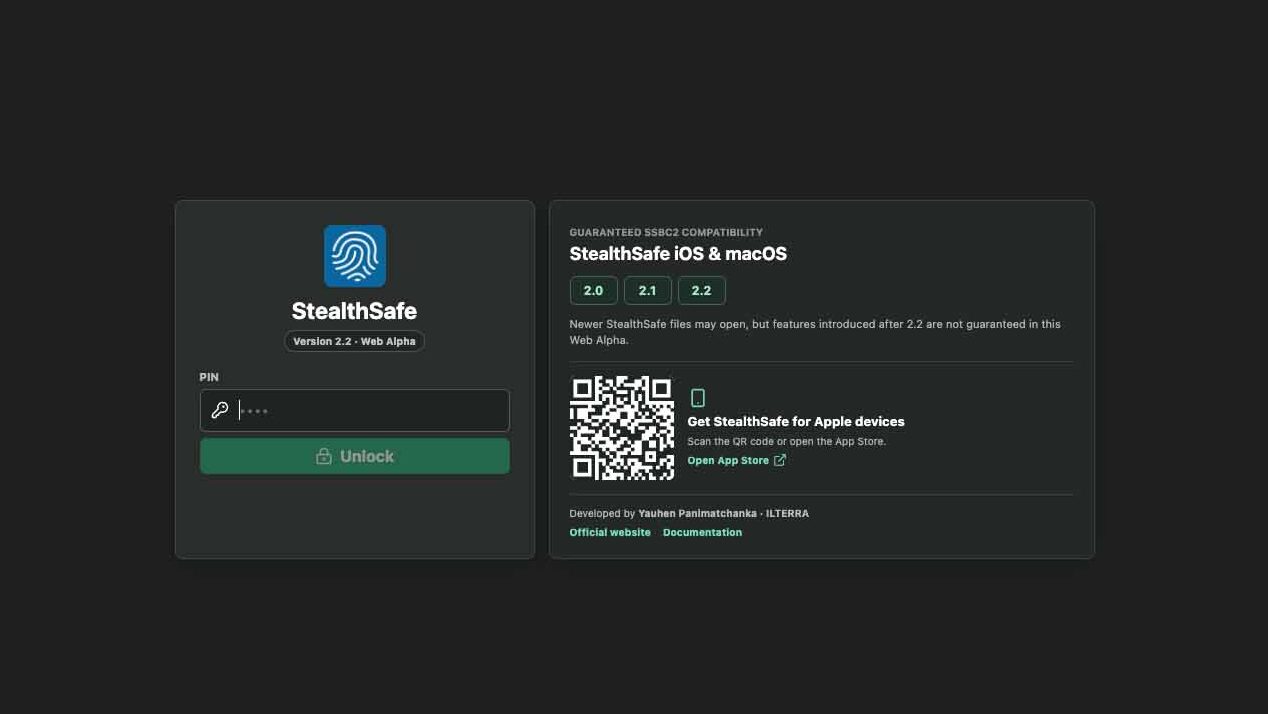
A profile is unlocked with a PIN. If the PIN matches an existing profile, StealthSafe opens it. If it does not match an existing profile, StealthSafe creates a new profile automatically.
Keep your PIN safe. It is part of how you access your encrypted data.
Briefcase
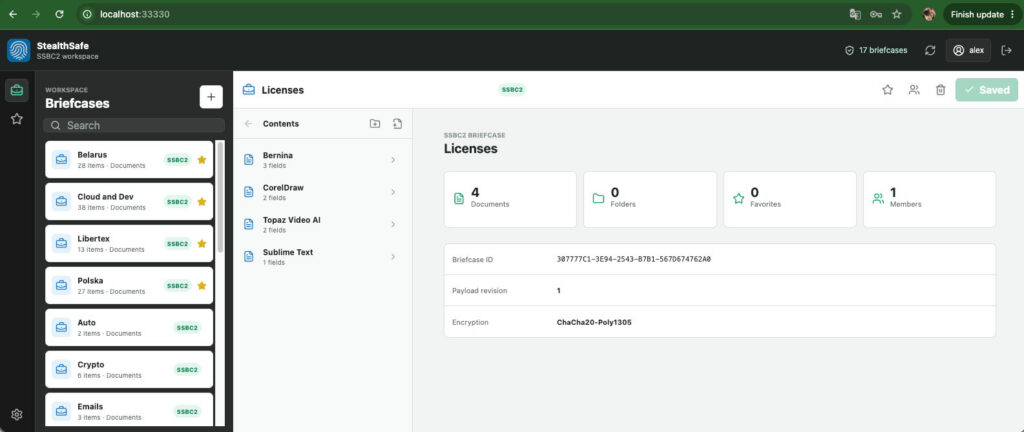
A briefcase is an encrypted .ssbc2 file. It can contain folders, documents, fields, attachments, private notes, passwords, one-time code fields, and other confidential records.
Briefcases can be stored in local folders, cloud-synchronized folders, removable drives, or server-mounted locations that you expose to the Docker containers.
Storage Folder
A storage folder is a folder selected inside the active StealthSafe profile. StealthSafe scans selected storage folders for .ssbc2 briefcases and offers them when creating new briefcases.
Docker mounts make host folders visible to the containers. Storage folders tell StealthSafe which of those visible folders should actually be used.
Documents And Fields
Inside a briefcase, you can create folders and documents. Documents can contain different field types, such as text, passwords, URLs, notes, one-time code fields, and attachments.
This gives you a structured way to store private information instead of keeping everything in a single flat list.
Why Use The Docker Edition
It Runs Where You Work
The Docker edition can run on Windows, macOS, Linux, private servers, NAS-like systems, homelabs, and internal infrastructure hosts. If the environment supports Docker, it can usually run StealthSafe.
It Uses Storage You Control
You decide where encrypted briefcases live. Keep them in a local folder, a cloud-synchronized folder, a mounted network share, or a server directory.
It Works With The Apple App
The Docker edition is compatible with the SSBC2 briefcase format used by StealthSafe iOS and macOS versions 2.0, 2.1, and 2.2. This makes it possible to use the Apple app for mobile access and the Docker edition for desktop or server work.
It Supports More Advanced Workflows
The backend includes API documentation. Engineers can use it to connect StealthSafe to internal tools, dashboards, scripts, or controlled server workflows.
It Avoids Mandatory Vendor Storage
StealthSafe does not force your records into a developer-operated cloud. You can combine local-first encryption with the storage and backup model you trust.
First Launch
Start the Docker edition with the launcher script for your operating system.
Open http://localhost:33330.
Enter a PIN.
Let StealthSafe open the matching profile or create a new one automatically.
Open Settings and add at least one storage folder.
Adding Storage Folders
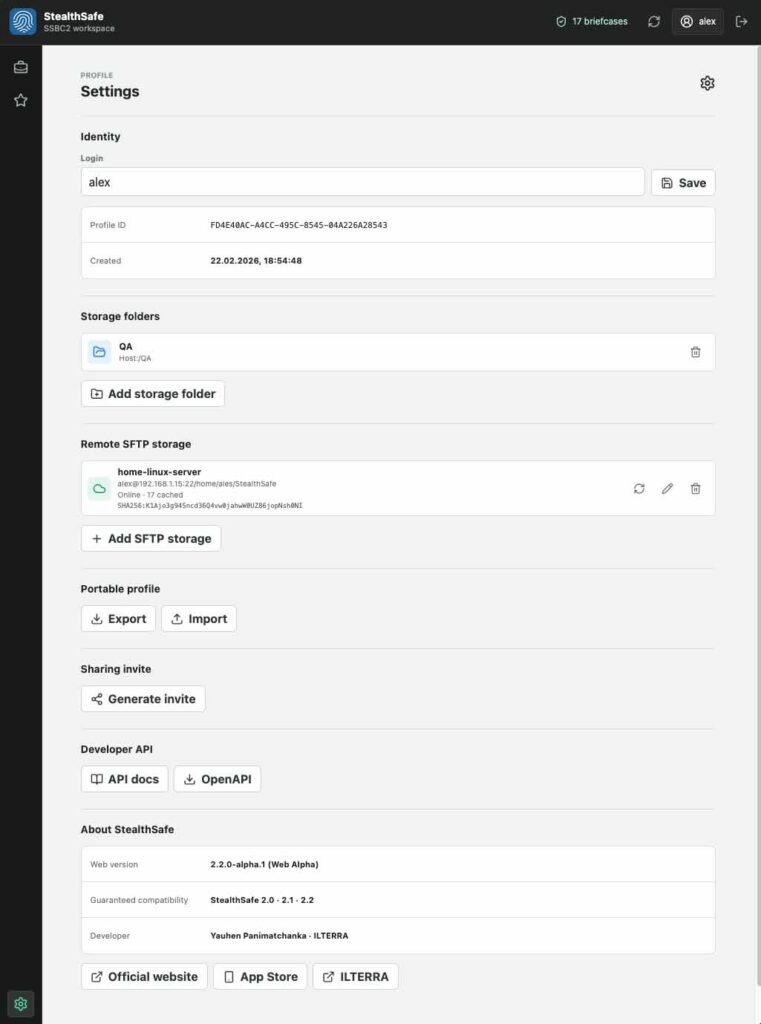
After unlocking, open Settings -> Storage folders.
You will see folders made available through Docker mounts. Select the exact nested folder where StealthSafe should store and scan encrypted briefcases.
Good examples:
A dedicated local folder such as Documents/StealthSafe.
A cloud-synchronized folder such as an iCloud Drive or Google Drive folder.
A mounted network share for a private server or team environment.
A project-specific directory for engineering workflows.
Creating A Briefcase
Open the briefcase list.
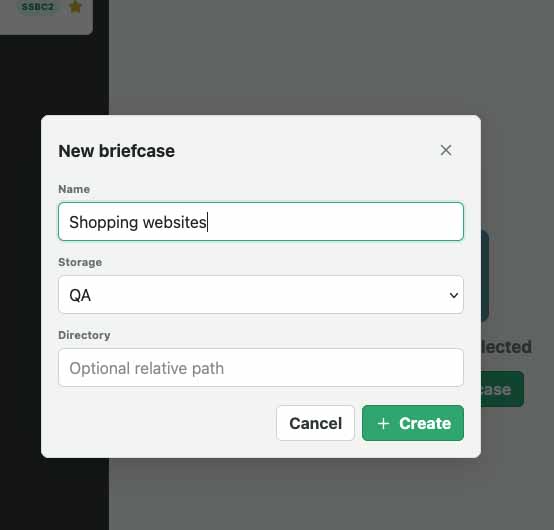
Choose the action to create a new briefcase.
Select the storage folder where the .ssbc2 file should be saved.
Give the briefcase a clear name.
Save it.
Use separate briefcases for separate areas of life or work. For example, you might keep personal records, client data, infrastructure access, travel documents, and family information in different briefcases.
Working With Documents
Inside a briefcase, create folders and documents to keep information organized.
Typical document examples:
Account record with login, password, URL, notes, and attachment.
Server access record with host, username, access notes, and recovery instructions.
Private document record with encrypted file attachments.
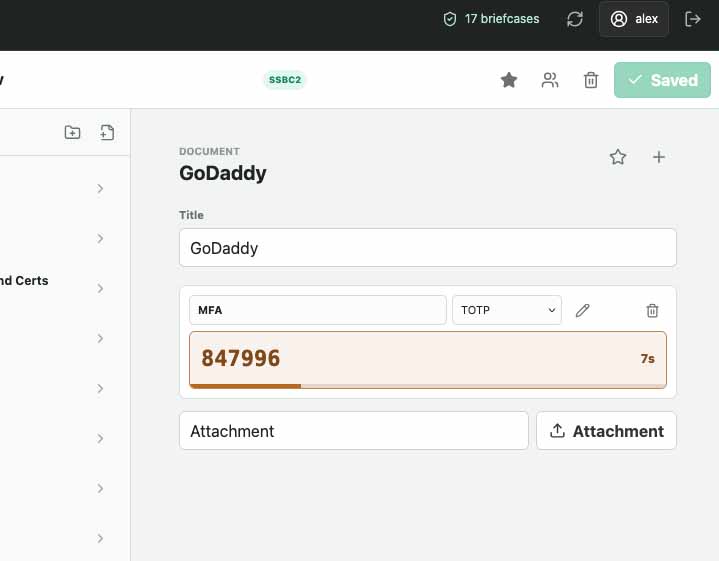
One-time code record where the current code is visible, while the underlying secret is not shown in normal view mode.
Use edit mode only when you need to change field values.
One-Time Code Fields
One-time code fields are designed for quick authentication workflows. In normal view mode, StealthSafe should show the current code and timing indicator without exposing the underlying secret value.
When the code is close to expiring, refresh timing helps you avoid copying a code that will become invalid too soon.
Attachments
Documents can include encrypted attachments. Use attachments for files that belong with a record, such as PDFs, certificates, screenshots, recovery documents, or small configuration files.
Because attachments increase briefcase size, keep large files organized and make sure your chosen storage folder has enough space and reliable backups.
Sharing And Profile Portability
StealthSafe is built around cryptographic access to briefcases. When supported by the active version, briefcases can include access for more than one profile.